Hard Bounces vs. Spam Complaints: How to Survive the Gmail, Yahoo & Outlook Sender Rules
Most deliverability problems appear in bounce logs or spam complaint rates. Teams often confuse them. Since Gmail started rejecting non-compliant mail in November 2025, there's a third type: the block bounce. It looks like a hard bounce in your ESP but says nothing about whether the address exists.
Here's what Gmail, Yahoo and Outlook require, how these failures differ, and which fix applies.
- Gmail's target spam rate is below 0.1%. 0.3% is the line you must never reach, not the goal.
- Crossing 0.3% isn't a permanent blacklist. The damage is real but recoverable.
- Three failures, three causes: hard bounces mean the address doesn't exist; block bounces mean the provider refuses your mail; spam complaints follow successful delivery.
- Email verification fixes only the first. Block bounces need authentication and reputation work. Complaints need better targeting and easier unsubscribes.
The Sender Rules in 2026: What Gmail, Yahoo and Outlook Actually Demand
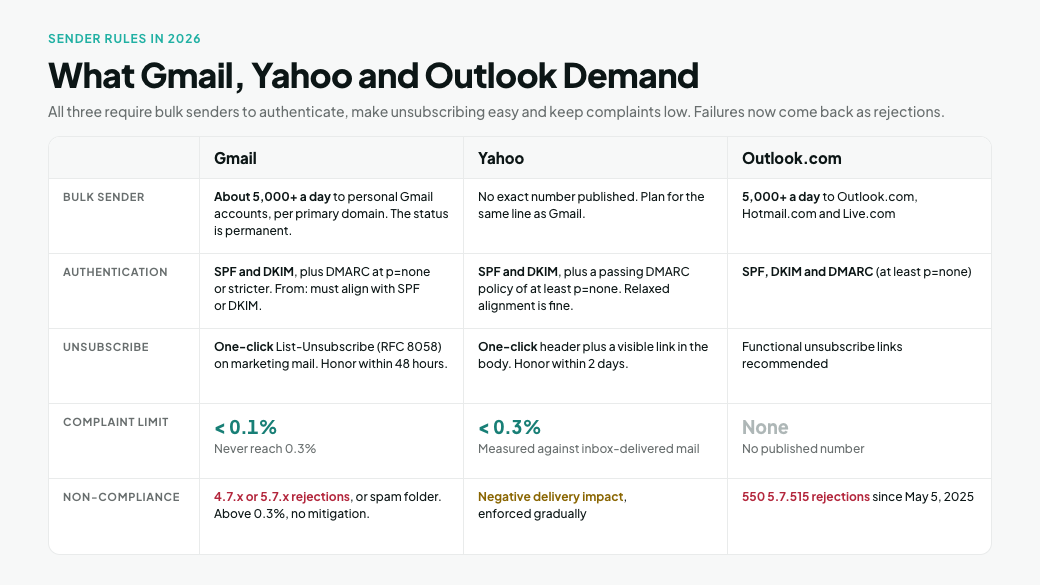
All three providers now require bulk senders to authenticate their mail, make unsubscribing easy, and keep complaints low. Bulk senders are those sending roughly 5,000+ messages a day to the provider's users.
The recent change is enforcement. Failures now come back as rejections, rather than just quietly sending your mail to spam.
| Requirement | Gmail | Yahoo | Outlook.com |
|---|---|---|---|
| Who counts as a bulk sender | About 5,000+ messages a day to personal Gmail accounts, counted per primary domain. Once classified, the status is permanent. | Yahoo publishes no exact number. Plan for the same line as Gmail. | 5,000+ messages a day to Outlook.com, Hotmail.com and Live.com addresses |
| Authentication | SPF and DKIM, plus DMARC at p=none or stricter. The From: domain must align with SPF or DKIM. | SPF and DKIM, plus a DMARC policy of at least p=none that passes. Relaxed alignment is fine. | SPF, DKIM and DMARC (at least p=none) |
| Unsubscribe | One-click List-Unsubscribe headers (RFC 8058) on marketing mail. Honor requests within 48 hours. | One-click List-Unsubscribe header plus a clearly visible unsubscribe link in the body. Honor within 2 days. | Functional unsubscribe links recommended |
| Spam complaint limit | Keep it below 0.1%. Never reach 0.3%. | Keep it below 0.3%, measured against inbox-delivered mail | No published number |
| What non-compliance looks like | Temporary (4.7.x) or permanent (5.7.x) rejections, or spam-folder placement. Above 0.3%, no mitigation. | Negative delivery impact, enforced gradually | 550 5.7.515 rejections since May 5, 2025 |
Sources: Gmail sender guidelines FAQ, Yahoo Sender Requirements, Microsoft's high-volume sender announcement.
What actually happens above 0.3%
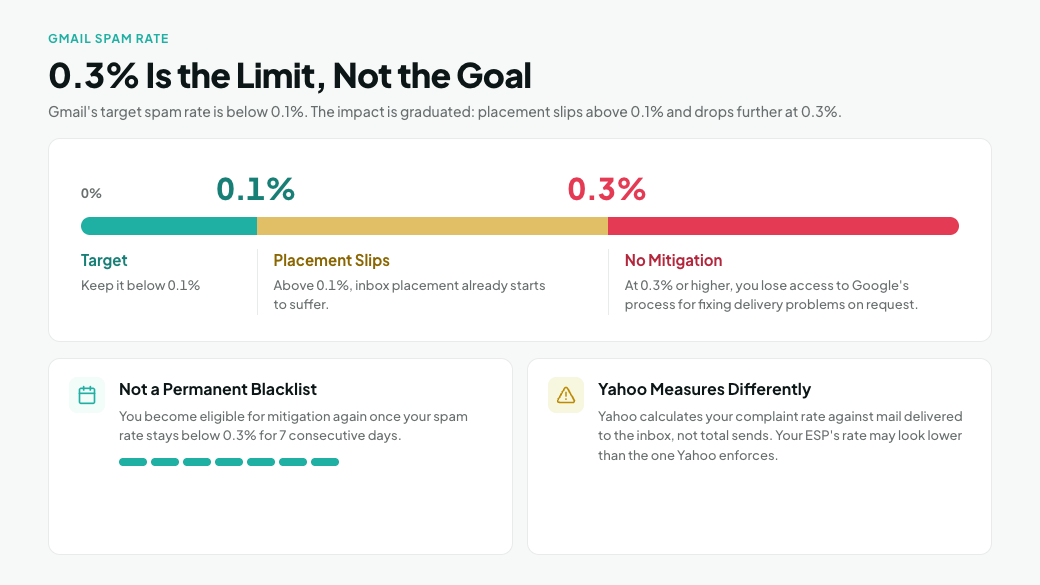
Crossing 0.3% does not permanently blacklist your domain. Google describes the impact as graduated: a spam rate above 0.1% already hurts inbox placement, and 0.3% or higher hurts more.
Above 0.3%, you also lose access to mitigation, Google's process for fixing delivery problems on request. You become eligible again once your spam rate stays below 0.3% for 7 consecutive days. Until then, mail lands in spam and engagement drops.
Watch how the rate is measured. Yahoo calculates your complaint rate against mail delivered to the inbox, not total sends. If some of your mail already lands in spam, your ESP's complaint rate will look lower than the number Yahoo enforces.
Yahoo Sender Hub's Insights dashboard shows the inbox-based rate Yahoo actually uses. It doesn't require CFL enrollment.
What changed in November 2025
Gmail announced a ramp-up in enforcement from November 2025, with temporary and permanent rejections for non-compliant traffic. Microsoft has rejected non-compliant high-volume mail with 550 5.7.515 since May 2025.
That changes how you read your bounce report: compliance failures now appear alongside invalid addresses. Both arrive as bounces, but they need different fixes.
For the full setup walkthrough (SPF, DKIM, DMARC, reverse DNS and TLS), see The Ultimate Guide to Email Deliverability & Sender Reputation.
Hard Bounces vs. Block Bounces vs. Spam Complaints: The Technical Difference
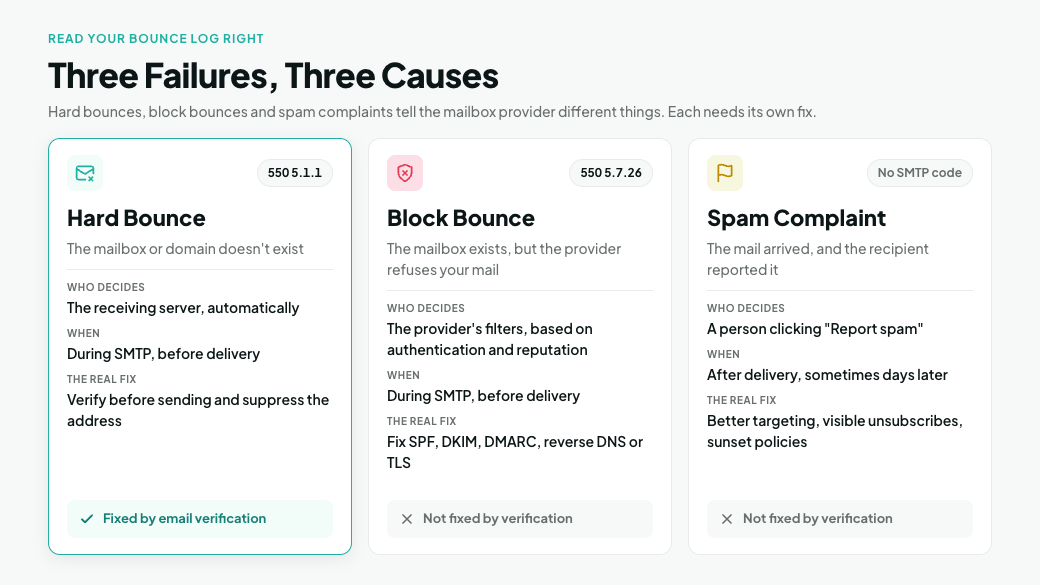
A hard bounce is an addressing failure. A block bounce is a policy decision. A spam complaint is a recipient's verdict after delivery. They tell the mailbox provider different things, so each needs its own fix.
| Hard bounce (invalid address) | Block bounce (policy rejection) | Spam complaint | |
|---|---|---|---|
| What it means | The mailbox or domain doesn't exist | The mailbox exists, but the provider refuses your mail | The mail arrived, and the recipient reported it |
| Who decides | The receiving server, automatically | The provider's filters, based on your authentication and reputation | A person clicking "Report spam" |
| When it happens | During the SMTP session, before delivery | During the SMTP session, before delivery | After successful delivery, sometimes days later |
| Typical codes | Gmail 550 5.1.1 (account doesn't exist), 553 5.1.2 (domain not found) | Gmail 550 5.7.26 (unauthenticated), 550 5.7.1 (likely unsolicited or low reputation). Outlook 550 5.7.515. | No SMTP code. Shows up as a spam rate in Postmaster Tools or in a feedback loop. |
| Scope | One address at a time | Often every message to that provider until fixed | Raises the spam rate that governs all your mail to that provider |
| What it signals | Your list has bad data, often old, bought or scraped | Your setup or reputation fails the provider's rules | Recipients don't want this mail |
| Fixed by email verification? | Yes | No | No |
| The real fix | Verify before sending and suppress the address | Fix SPF, DKIM, DMARC, reverse DNS or TLS. For reputation blocks, cut complaints and volume. | Better targeting, visible unsubscribes, sunset policies |
Both bounce types happen during the SMTP session, but at different steps. An invalid address is rejected at the RCPT TO step, before any message content is sent. That's why a verifier can check whether an address exists without sending an email (here's how that works).
Authentication blocks usually come later, after the message body is sent. DKIM needs the body to check the signature.
Read the middle number, not the 550
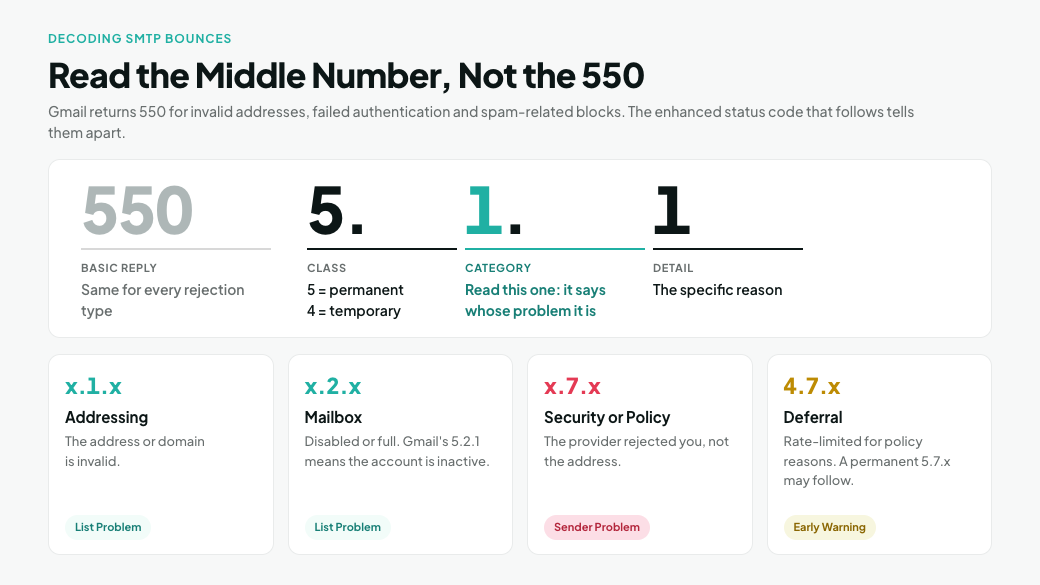
"550 means the address doesn't exist" is the most common misreading of a bounce log. Gmail returns 550 for invalid addresses, failed authentication and spam-related blocks. To tell them apart, read the enhanced status code that follows it.
In a code like 5.1.1, the first digit tells you whether the failure is permanent (5) or temporary (4). The second identifies the category, as defined in RFC 3463:
- x.1.x – addressing. The address or domain is invalid. This is a list problem.
- x.2.x – mailbox. The mailbox is disabled or full. Gmail's 5.2.1, for example, means the account is inactive.
- x.7.x – security or policy. The provider rejected you, not the address. This is a sender problem.
A 4.7.x is a deferral: Gmail is rate-limiting you for the same policy reasons. Treat it as an early warning that a permanent 5.7.x block may follow.
Spam complaints never appear in the bounce log. For Gmail, you only see an aggregate spam rate in Postmaster Tools.
To see individual complaints, you need a feedback loop: Yahoo's Complaint Feedback Loop (CFL) or Microsoft's Junk Mail Reporting Program (JMRP). JMRP requires a dedicated sending IP, so shared-IP senders depend on their ESP for that data.
Block Bounces: The 5xx Errors Email Verification Can't Fix
Since Gmail's November 2025 enforcement ramp, a sudden spike of 5xx bounces at one provider is more likely a policy block than a wave of dead addresses. Many reports don't distinguish between the two.
Many ESPs label every permanent (5xx) failure a "hard bounce," and some suppress those addresses automatically. Others list "blocks" separately. Before acting on the number, check how your platform labels these failures.
The block codes to know
| Code | Provider | What it means | Where the fix lives |
|---|---|---|---|
| 550 5.7.26 | Gmail | Unauthenticated, or failed the sending domain's DMARC policy | SPF and DKIM setup, From: alignment |
| 550 5.7.27 | Gmail | SPF didn't pass (bulk senders) | SPF record and ESP includes |
| 550 5.7.30 | Gmail | DKIM didn't pass (bulk senders) | DKIM signing in each sending platform |
| 550 5.7.40 | Gmail | No DMARC record, or no policy in it | Publish DMARC at p=none or stricter |
| 5.7.32 | Gmail | From: domain isn't aligned with the SPF or DKIM domain | DMARC alignment: sign with your own domain |
| 550 5.7.25 | Gmail | Sending IP has no valid PTR (reverse DNS) record | Your ESP or IP owner |
| 550 5.7.29 | Gmail | Message not sent over TLS | Your ESP or mail server |
| 550 5.7.1 | Gmail | Likely unsolicited, or very low domain or IP reputation | Complaints, engagement and volume |
| 550 5.7.28 | Gmail | Unusual rate of unsolicited mail from your IP | Complaints, engagement and volume |
| 550 5.7.515 | Outlook.com | Sending domain doesn't meet the required authentication level | SPF, DKIM and DMARC |
Source: Gmail SMTP errors and codes. Gmail's error text names the exact requirement that failed, so always read the full response, not just the code.
Most of these are configuration problems. Fix the DNS or ESP setting and the block lifts.
The two exceptions are 5.7.1 and 5.7.28. These reputation blocks only lift once complaints and unwanted volume come down.
Why misdiagnosis is expensive
A wrong diagnosis costs you either way:
- Treating a block as a list problem. Your ESP suppresses thousands of valid subscribers in one send. You re-clean a list that wasn't the problem, then resend into the same rejection.
- Treating a list problem as a block. You spend days on DNS records while invalid addresses keep bouncing. Yahoo's sender recommendations specifically tell senders to monitor hard bounces and remove invalid recipients promptly.
The tell
An address that accepted your mail last month and returns 5.7.x today hasn't stopped existing. Block bounces cluster around one provider on one day, affecting many addresses that previously delivered.
Invalid-address bounces spread across many domains and track where the list came from.
How to Triage Your Bounce Log After Every Send
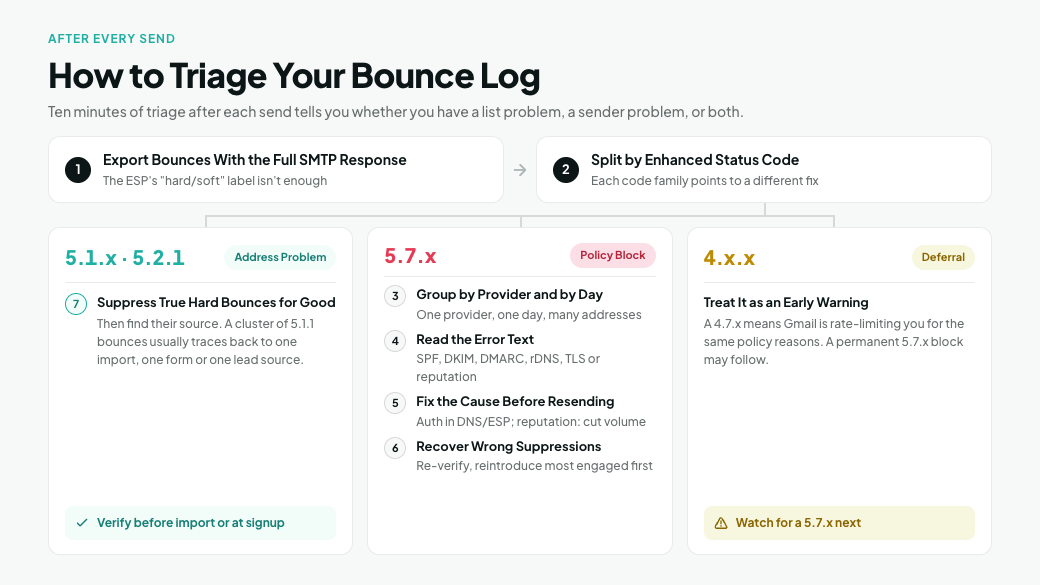
Ten minutes of triage after each send tells you whether you have a list problem, a sender problem, or both. Work through these steps in order:
- Export bounces with the full SMTP response. Your ESP's "hard/soft" label isn't enough. You need the code and the provider's error text.
- Split by enhanced status code. 5.1.x and 5.2.1 are address problems. 5.7.x are policy blocks. 4.x.x are deferrals.
- Group the 5.7.x bounces by receiving provider and by day. One provider, one day, many addresses means a block.
- Read the error text. Gmail's tells you exactly which requirement failed: SPF, DKIM, DMARC, reverse DNS, TLS or reputation.
- Fix the cause before resending. Resolve authentication codes in DNS or ESP settings. For reputation codes (5.7.1, 5.7.28), pause low-engagement segments, reduce volume and check your spam rate in Postmaster Tools.
- Recover contacts your ESP suppressed by mistake. If block-bounced addresses were auto-suppressed, export them and run them through a bulk email verifier. Once the block is fixed, valid addresses can return to your list. Reintroduce them gradually, most engaged first. Invalid ones stay suppressed.
- Suppress true hard bounces for good, then find their source. A cluster of 5.1.1 bounces usually traces back to one import, one form or one lead source. Fix it there with verification before import or real-time verification at signup.
Step 6 is where verification helps even with a block. It can't lift the block, but it separates "the provider refused me" from "the address is dead." That keeps a DNS mistake from costing you good subscribers.
How to Eliminate Invalid-Address Hard Bounces Before Sending (The Infrastructure Fix)
Email verification removes addresses that would return 5.1.1 before you send. Those bounces never reach your reputation.
Why hard bounces still matter
Gmail's rules focus on spam complaints and publish no bounce threshold. That doesn't make bounces harmless:
- Providers ask for it directly. Yahoo's sender recommendations tell senders to monitor hard and soft bounces and remove invalid recipients promptly. Microsoft's high-volume sender announcement recommends list hygiene and bounce management, advising senders to remove invalid addresses monthly or quarterly.
- Your ESP enforces its own limits. Most sending platforms monitor bounce rates and can pause or suspend accounts that exceed them.
- Bounces come with other risks. Lists that bounce are usually old or poorly sourced. They also tend to carry recycled spam traps and people who no longer remember signing up, which feeds complaints.
When to verify
- Before mailing any list you haven't mailed recently
- Before importing a list from an event, a partner, a CRM migration or a lead-gen source
- Before every cold outbound campaign
- After a block event, to recover wrongly suppressed contacts
- Continuously, at the point of signup
The verification workflow
- Export the segment from your ESP or CRM, or connect it through one of the 40+ integrations.
- Run it through the MillionVerifier Bulk Email Verifier.
- Send to Good results.
- Handle Risky results (catch-all and unknown) separately, in small batches that you monitor closely. See How to Handle Catch-All and Risky Emails.
- Remove Bad results and add them to your ESP's suppression list so they can't be re-imported.
- Keep new data clean with the real-time verification API on signup forms, and existing lists clean with EverClean automated verification.
For the full method, see The Ultimate Guide to Email Verification & List Cleaning.
Set a realistic target: near-zero, not zero
No verifier can promise a 0% hard bounce rate. Catch-all domains accept every address during the SMTP check, so the mailbox can't be confirmed in advance. Mailboxes also get deactivated between verification and send. Verify as close to send time as you can.
MillionVerifier backs its results with a money-back guarantee: if you send to addresses it returned as OK within 7 days of verification and your hard bounce rate exceeds 4%, your last payment is refunded. Terms apply, including a detailed bounce report from your ESP.
What verification won't fix
Verification confirms that an address exists. It doesn't fix block bounces or stop a recipient from clicking "Report spam." It also can't detect pristine spam traps, which are real, valid addresses. Reducing complaints matters just as much as cleaning your list.
How to Lower User Spam Complaints (The Human Fix)
No verifier can stop a person from clicking "Report spam." Work through these five workflows, in this order to lower complaints at the source:
- Find out where complaints come from. Gmail shows only an aggregate spam rate in Postmaster Tools. Split your sends by stream (newsletter, promotions, onboarding) to see which one drives it.Enroll every DKIM domain in Yahoo's Complaint Feedback Loop, and register any dedicated sending IPs in Microsoft's JMRP. Both send back individual complaints, so you can suppress complainers automatically. On shared IPs, your ESP has to process Microsoft's reports for you. Microsoft moved SNDS and JMRP to a new portal in June 2026, and JMRP reports now carry headers only, not the original message. If you identified complainers from the message body or To: address, switch to a VERP return-path, Message-ID or a custom header. Then check the list source. Imports, co-registration and unconfirmed signups are the usual culprits.
- Send relevant mail to segmented audiences. Stop sending generic copy to your whole list. Segment by interest, behavior or purchase history.Honor the frequency people signed up for. Yahoo explicitly warns against turning a weekly list into a daily one. Set expectations at signup and confirm opt-ins.
- Make unsubscribing easier than reporting spam. One-click List-Unsubscribe headers are required, but don't rely on them alone. Gmail only shows its native unsubscribe button for messages that pass automated eligibility checks. Yahoo requires a clearly visible link in the body.If recipients can't find your link, "Report spam" becomes the easiest exit—and costs you far more than an unsubscribe. Never require a login, and process requests within 48 hours.
- Sunset unengaged subscribers. Define engagement by clicks, replies, purchases or logins, not opens alone. Apple Mail Privacy Protection loads images automatically, which inflates open rates.A common rule for weekly senders: no click in 90 days triggers one re-engagement email, and non-responders are suppressed. Monthly senders can use a longer window.
- Keep sending volume steady. Sudden spikes look like a compromised account or a bought list. Ramp up new domains and large campaigns gradually, starting with your most engaged contacts.
Our guide to sender reputation covers reputation repair in more depth if your spam rate is already above 0.1%.
The Gmail, Yahoo & Outlook Deliverability Compliance Checklist
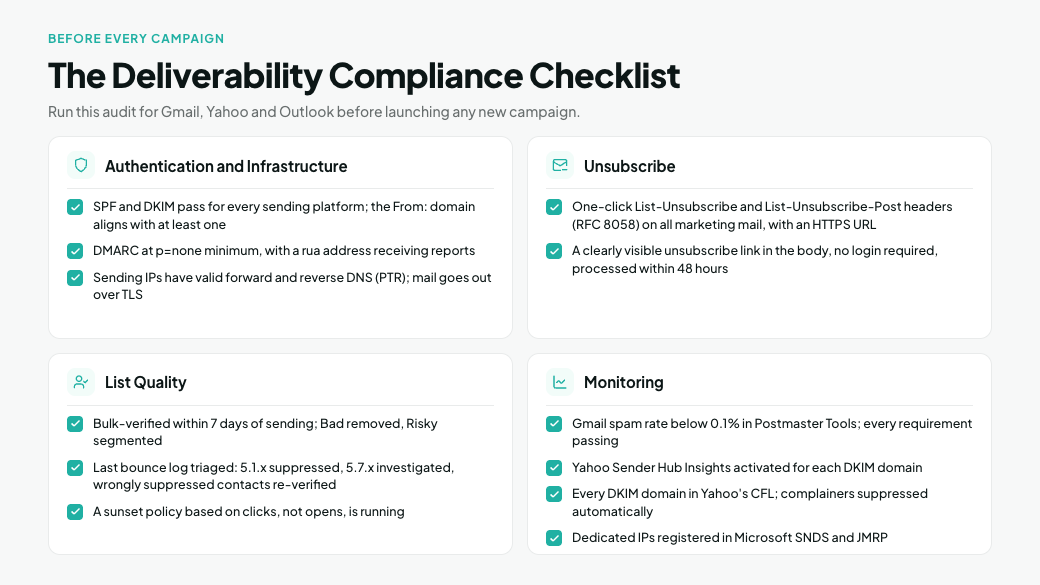
Run this audit before launching any new campaign. Every item maps to a requirement or failure type covered above.
Authentication and infrastructure
- SPF and DKIM both pass for every platform that sends as your domain, and the From: domain aligns with at least one of them.
- DMARC is published at p=none at minimum, with a rua address receiving reports. Once the reports are clean, plan the move to quarantine or reject.
- Sending IPs have valid forward and reverse DNS (PTR) records, and mail goes out over TLS. Your ESP usually handles both, but confirm it.
Unsubscribe
- One-click unsubscribe headers (List-Unsubscribe and List-Unsubscribe-Post, per RFC 8058) are active on all marketing mail, with an HTTPS URL.
- A clearly visible unsubscribe link sits in the email body and requires no login. Requests are processed within 48 hours.
List quality
- The audience was run through bulk verification within 7 days of sending. Bad results are removed and Risky results are segmented.
- The last send's bounce log was triaged: 5.1.x addresses suppressed, 5.7.x blocks investigated, and wrongly suppressed contacts re-verified.
- A sunset policy based on clicks, not opens, is running.
Monitoring
- The Gmail spam rate in Postmaster Tools is below 0.1%, and the Compliance status dashboard shows every requirement passing. Don't look for domain or IP reputation there: Google retired those dashboards in Postmaster Tools v2.
- Yahoo Sender Hub Insights is activated for each DKIM domain. It shows the inbox-based complaint rate Yahoo enforces and doesn't require CFL enrollment.
- Every DKIM domain is enrolled in Yahoo's Complaint Feedback Loop, and complainers are suppressed automatically.
- If you send from dedicated IPs, they're registered in Microsoft SNDS (IP reputation and complaint data) and JMRP (individual junk reports). On shared IPs, ask your ESP how it handles Outlook.com complaints.
Frequently Asked Questions
Is a hard bounce the same as being marked as spam?
No. A hard bounce is a server rejection during delivery because the address doesn't exist. A spam complaint comes from a recipient after the email was delivered successfully. They have different causes and need different fixes.
Does Gmail penalize hard bounces?
Gmail publishes no hard bounce threshold, but bounces still count against you. Yahoo and Microsoft both ask senders to remove invalid addresses, and most ESPs enforce their own bounce limits.
What happens if my spam rate goes above 0.3%?
Your domain isn't permanently blacklisted. You lose eligibility for Gmail's delivery mitigation until your spam rate stays below 0.3% for 7 consecutive days. Inbox placement suffers in the meantime—and already starts to slip above 0.1%.
Why is my ESP reporting hard bounces from addresses that worked last month?
They're most likely block bounces. Check the full SMTP response: a 5.7.x code means the provider rejected your mail for policy or reputation reasons, not because the address stopped existing.
Can email verification lower my spam complaint rate?
Not directly. Verification removes invalid addresses and prevents hard bounces. Complaints come from real recipients, so reducing them takes the targeting, unsubscribe and sunset practices described above.
Verify Before Your Next Send
Hard bounces are the one failure type you can remove before a single email goes out. Run your next list through MillionVerifier. Then you can send knowing that most bounces left in your report point to fixable sender problems, not bad data.
Create your free account to get 100 free credits, no credit card needed.